A secure user account system with Eclipse RAP
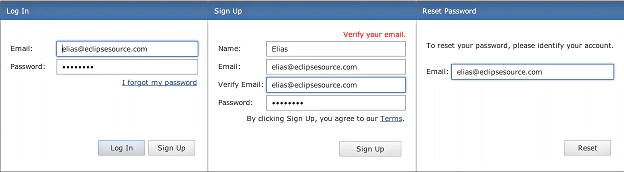
Recently, I developed a “user account” system for a customer’s Eclipse RAP application. Here are a few do’s and don’ts, which I learned in the process.
To provide some context: Users can perform these actions: sign-up for a new account, sign-in to an existing account, reset the password for an existing account (screenshots above).
Passwords
- Never store passwords in plain-text.
- Store passwords only in hashed form.
- Hash using a widely accepted crypto-grade hash function; never your own.
- Before hashing, add a random salt to each password. This ensures that same passwords have different hashes (making them harder to guess).
- Use a slow (i.e. iterative) hash algorithm, to make brute force attacks less effective. This is called key stretching.
- To verify a sign-in attempt: retrieve the “salt” for that user, combine “salt” with password-candidate and compute the hash. If the computed hash matches the stored hash, proceed.
- Read this excellent tutorial on secure salted password storage before you start.
Sign-up (and user-entered-data)
- Check entered data for minimum and maximum lengths.
- Sanitize entered data to prevent Cross-Site-Scripting (XSS) and SQL-Injection attacks.
- Do use PreparedStatement, if your SQL-Query contains parameters.
- Do not send the password via email.
Password Reset
- Do not allow the user to log-in through the password reset workflow.
- Do not send a new password via email.
- Do send a reset token (hyperlink) to the email address associated with the user’s account.
- Have the reset token expire within a few minutes.
- Have the reset token expire after a successful login.
Hosting
- For security over untrusted networks (public WiFi, etc.), serve sensitive data (i.e. login, sign-up) via https.
- For best security, serve the whole application over https (if you can spare the CPU cycles).
Scaling
- Implement authentication/sign-up as a networked service, so that it can be used by multiple RAP server instances. For OSGi-based software, OSGi Remote Services with ECF are an easy way to do this.
- The authentication service should only be accessible on the internal network.
If you found this useful, follow me on twitter.
Elias.